

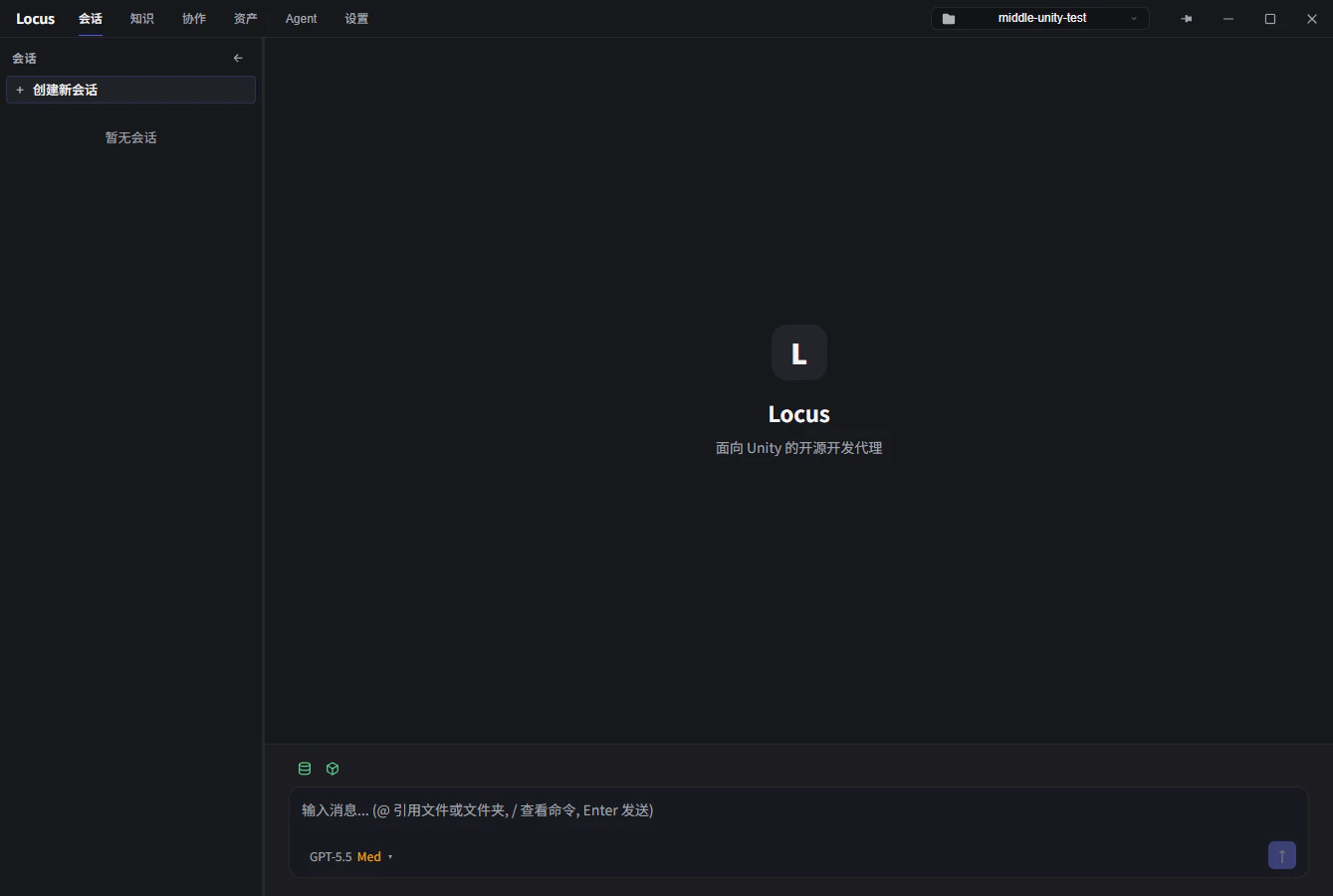
Interface layout
- Session list: the left column manages all sessions, with a context menu and multi-select.
- Conversation area: the center shows messages, tool calls, and approval cards.
- Side panels: the
Task listandFile changespanels expand on the right of the conversation area to track the Agent’s todos and file edits. See File changes and undo. - Composer: the input area at the bottom. The row above it shows status indicators (
Asset Database,Unity Editor connected, and others); check them before sending. The row below holds the model selector and the context usage indicator.
Composer
- Multi-line input and sending: the default send key is
ENTER. You can switch it toCTRL+ENTERin Settings > Shortcuts, in which caseENTERinserts a newline. - @ references: type
@to search and reference project assets, files, folders, or knowledge documents. You can also drop files into the composer. If the file tool boundary is on, referencing files outside the workspace shows a warning. See Tool permissions. - Image paste: the composer accepts images; paste them with
CTRL+V. - Slash commands: type
/to open the command list.
Installed Skills can register their own slash commands, such as
/view and /plugin.
Model and effort switching
The model selector below the composer groups models by provider:OpenRouter, Claude Subscription, Claude Code CLI, ChatGPT Subscription, and Custom. When a model supports reasoning effort, an effort selector appears next to it with levels such as No thinking, Quick response, Balanced thinking, Deep reasoning, and Maximum reasoning. Higher levels reason longer and cost more. Default models per scenario are set in Settings > Default Models. See Model configuration.
Sending while the Agent is running
You can keep typing while the Agent works. A message sent mid-run is handled in one of two ways:Queue: send it as the next message after the current run finishes. The composer shows aQueuedbadge.Insert: inject it into the current conversation after the next tool call, so the Agent picks it up immediately. The badge readsQueued for insert.
While running in Settings > Shortcuts (Queue next or Insert now).
Session list management
- New session: click the
+icon above the list or pressCTRL+N(the shortcut is configurable in Settings). - Context menu:
Rename,Open in Unity,Save context (with system prompt),Save context (without system prompt),Archive session,Delete session. Archived sessions remain readable under Settings > Archived Sessions. - Multi-select: hold
CTRLto toggle items orSHIFTfor a range, then archive or delete them in one action. - Sub-agent expansion: click the
>next to a list item to expand the detailed execution trace of its Subagents. - Copying a session: run
/forkto copy the current session and switch to the copy. Child sessions (Subagent sessions) cannot be copied.
Message menu
Right-click a message to open its menu:Copy this message: copy the message text.Edit again: put this user message back into the composer to revise and resend.Roll back to this message: rewind the conversation to the state before this message.Fork from this message: branch a new session from this point; the original session stays untouched.