

First use: Git init
When the current project is not yet a Git repository, the page shows an initialization entry.Git Init creates the repository in one step and writes a .gitignore and Git LFS configuration tailored to Unity projects; Perforce (P4) Init is not supported yet, and SVN is also on the plan. If Git’s user.name or user.email is missing, a dialog pops up to collect them, and committing stays blocked until they are filled in.
Page layout
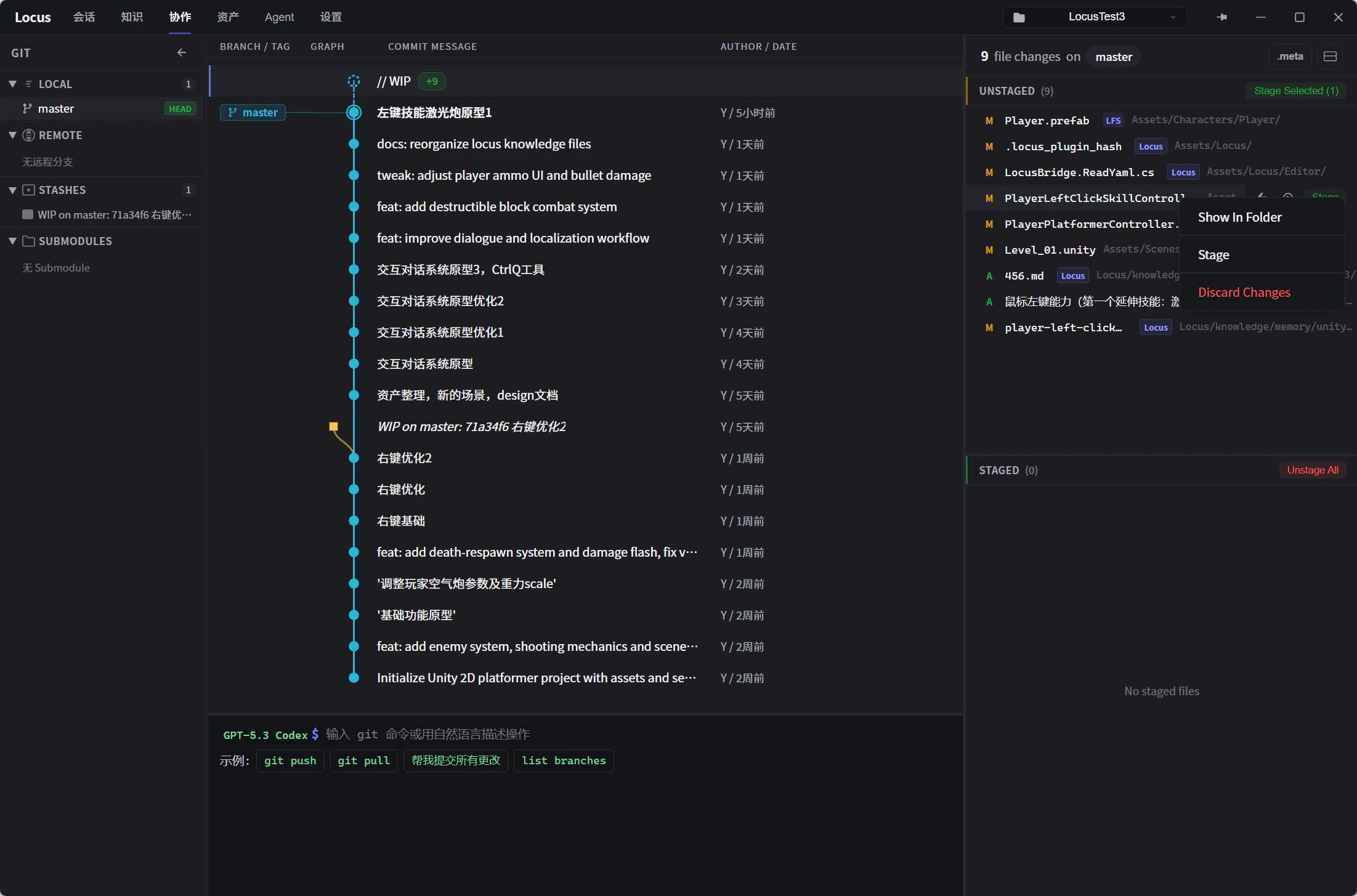
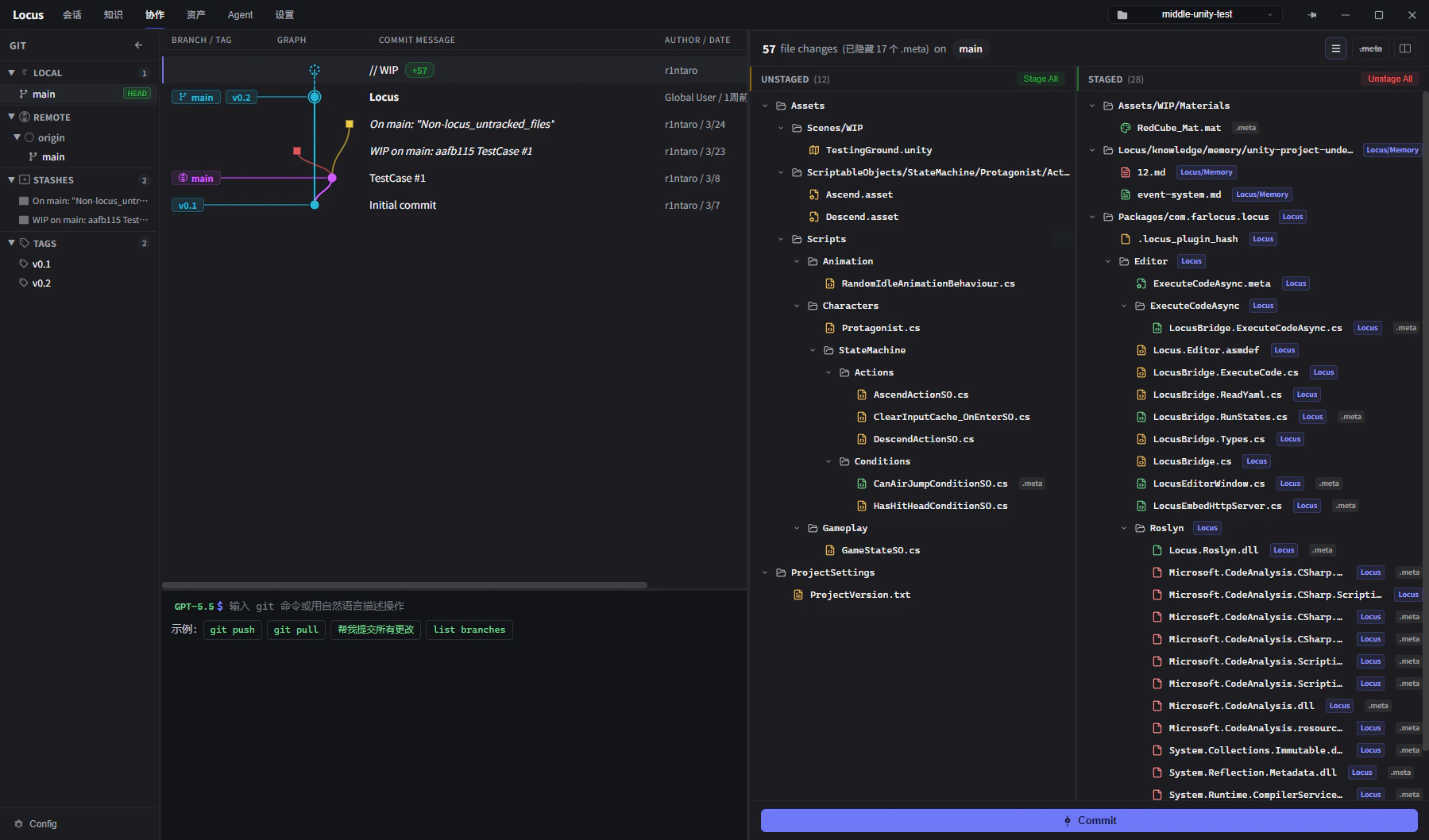
- Left sidebar: the
LOCAL(local branches),REMOTE(remote branches),STASHES,TAGS, andSUBMODULESgroups. - History graph: a graphical view of commit history. The
// WIProw stands for the workspace’s uncommitted changes; scrolling to the bottom loads more commits automatically. - Change list: the Unstaged and Staged areas. See Changes and commits.
- Diff area: click any file (from a commit, a stash, or Unstaged/Staged) to preview its diff. Unity assets open in the semantic view automatically. See Semantic diff.
- Command line at the bottom: type standard Git commands directly, or give the AI instructions in natural language.
Commit context menu
Right-click a commit in the graph:Create Branch…: create a branch from the commit.Soft Reset/Mixed Reset/Hard Reset: reset the current branch to the commit.Hard Resetloses all uncommitted changes and asks for confirmation first.Revert Commit: create an inverse commit that undoes the commit’s changes.Checkout Branch/Checkout Detached HEAD: switch to a branch on the commit, or check it out as a detached HEAD.
Branches and stashes
- Double-click a branch that is not current to switch to it; double-clicking a remote branch with no local counterpart creates a local tracking branch and checks it out.
- The branch context menu offers
Merge into Current,Rebase Current onto This,Rename Branch…,Delete Branch, andCopy Branch Name. - The stash context menu offers
Apply Stash,Pop Stash, andDrop Stash. A stash whose base commit has not been loaded into the graph yet is markedUnanchoredand shows only in the left list; it returns to the graph as more history loads.
Layout and display modes
Three buttons sit at the top right of the change list: theList view / Tree view toggle, the Hide .meta files switch, and the Horizontal layout / Vertical layout toggle.
Searching Git history
Search history on the graph toolbar opens the Git Search window: filter by File (file name matching, with Use regular expression available), Author, and a date range. Results cover commits and stashes, capped at 1000 entries; past the cap, it notes that only the first matches are shown. Click a result to locate it in the graph; if the target is not in the loaded range, it reports that the item is outside the current graph.