

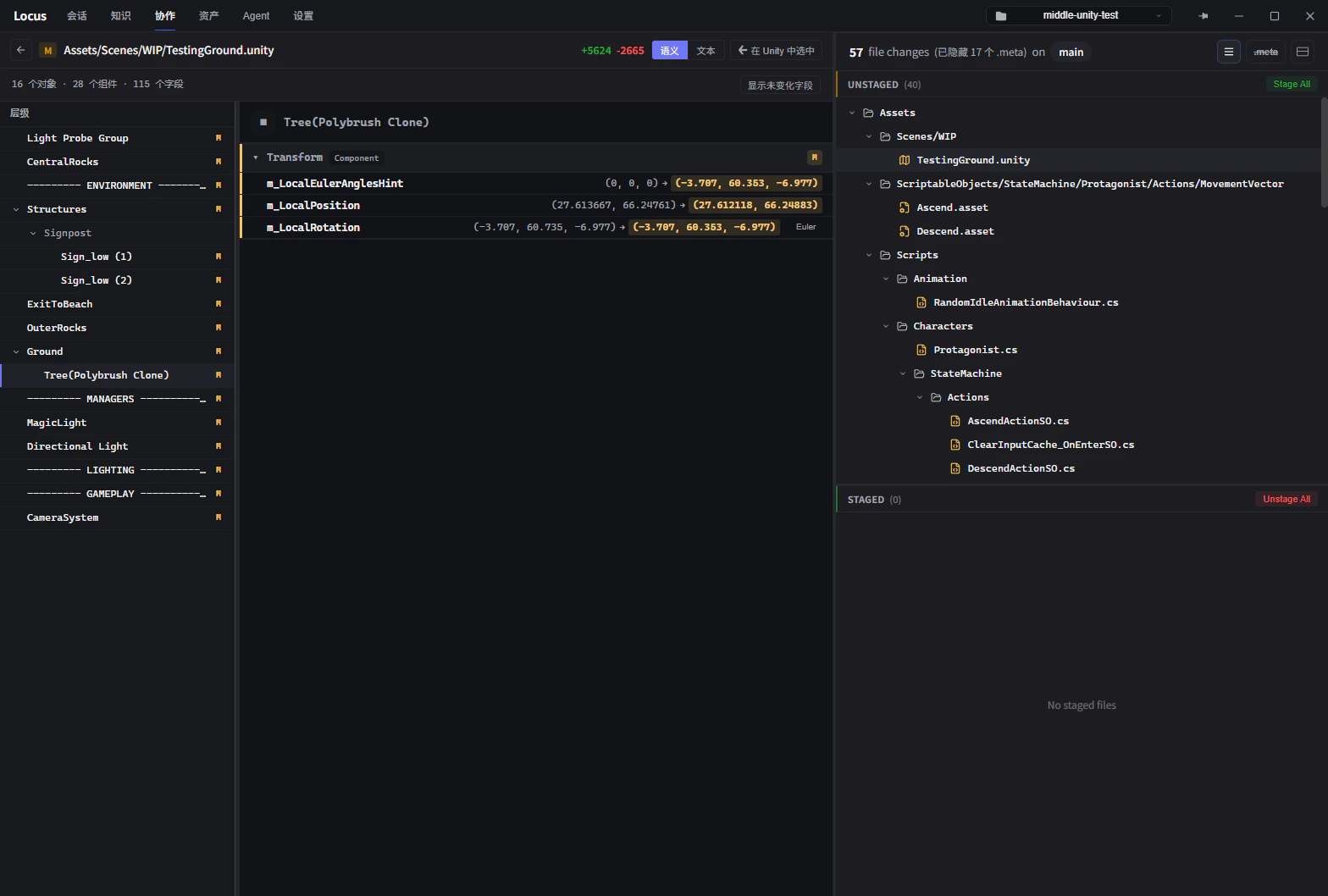
Two views
Diff previews of Unity assets haveSemantic and Text tabs:
Semanticview: a hierarchy tree on the left lists the objects that changed (added, removed, and modified in distinct colors); the right side shows field-level before and after values grouped by component. Only changed fields show by default;Show Unchanged Fieldsexpands everything.Textview: the traditional line diff. TheSide-by-sidebutton switches between stacked and side-by-side layouts. Use it to check the raw YAML, or for cases the semantic view does not cover.
Supported asset types
Scenes (.unity), Prefabs (.prefab), Materials (.mat), animations and animator controllers (.anim / .controller), ScriptableObjects and other .asset files, plus physics materials, render textures, and other assets serialized as YAML. Component fields follow the Inspector’s grouping, for example Transform’s transform values or ParticleSystem’s main / emission / shape modules. Non-YAML assets and binary files fall back to a text diff or offer no preview.An example
Move an object’s position in a Prefab from (0, 0, 0) to (0, 2.5, 0):- Text diff: first find the line where
y: 0becomesy: 2.5among a dozen lines ofm_LocalPositionandm_LocalRotationYAML context, then trace the block upward to work out which object the data belongs to. - Semantic diff: the position field of that object’s Transform component shows its before and after values directly. Readable at a glance.