Session
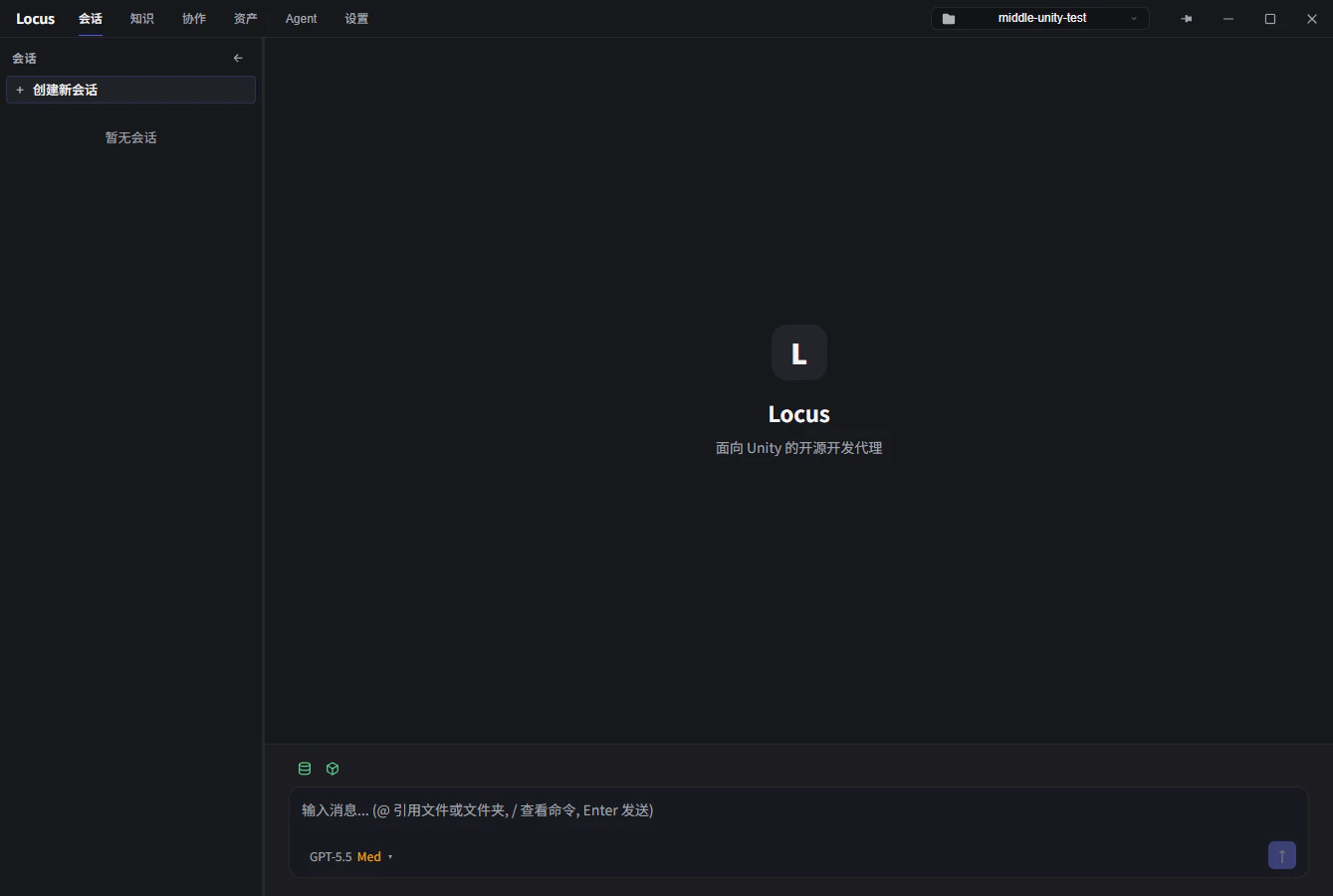
Asset Database and Unity Editor Connection indicators in the upper-left corner of the input box are both green.
- Multimodal input: drop or paste images into the input box with
CTRL+V. - New session: click
+in the top-left, or hitCTRL+N(remappable in Settings). - Auto-approval mode (bottom-right): when on, the Agent runs tools without asking. When off, every modification needs your approval—safer, but slower.
- Model switcher (bottom-right): change the model used by the current session.
- Send:
ENTERby default; switch toCTRL+ENTERin Settings. - Session list: click
>to expand a Subagent’s run. Right-click for archive/delete; holdSHIFTfor multi-select.
Collaboration
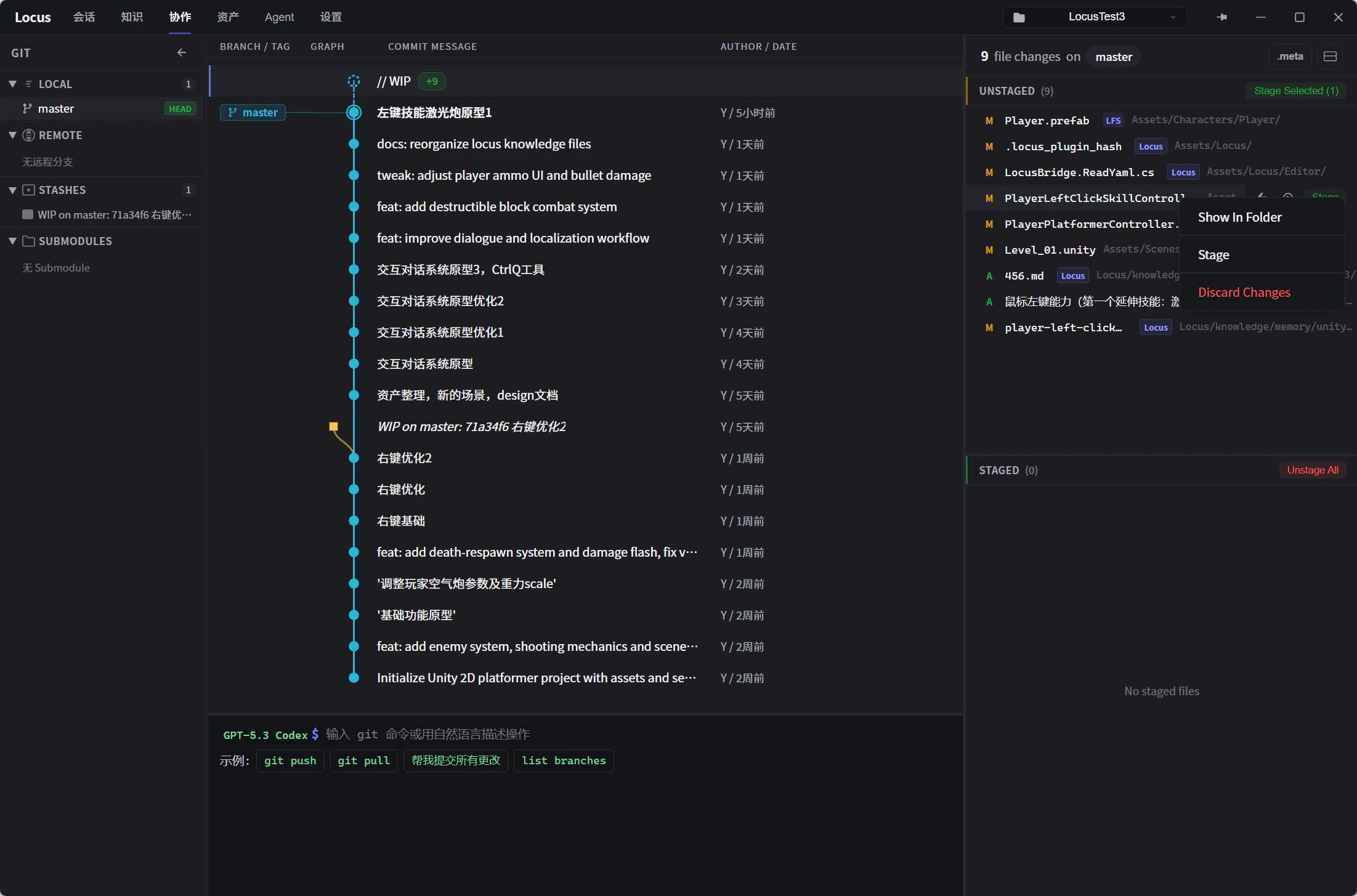
- Terminal at the bottom: type standard Git commands, or hand instructions to the AI in plain English.
- Change list display modes: the three buttons in the upper-right corner of the change list switch its display mode.
- Right-click menu: available on commits and modified files; the action set is still growing—feedback welcome.
- Change preview: click any file in the Commit, Stash, or Unstaged/Staged lists to see the diff. Unity YAML assets (Scene, Prefab, ScriptableObject) get a structured visual diff.
- Conflict resolution: field-level semantic merge when conflicts hit Unity YAML.
- Locus-tagged files: knowledge and config files owned by the Agent. By default, memory and understanding other than
user_preferenceare shared at the project level. Add their paths to.gitignoreif they should stay out of version control.
Knowledge
Knowledge Categories
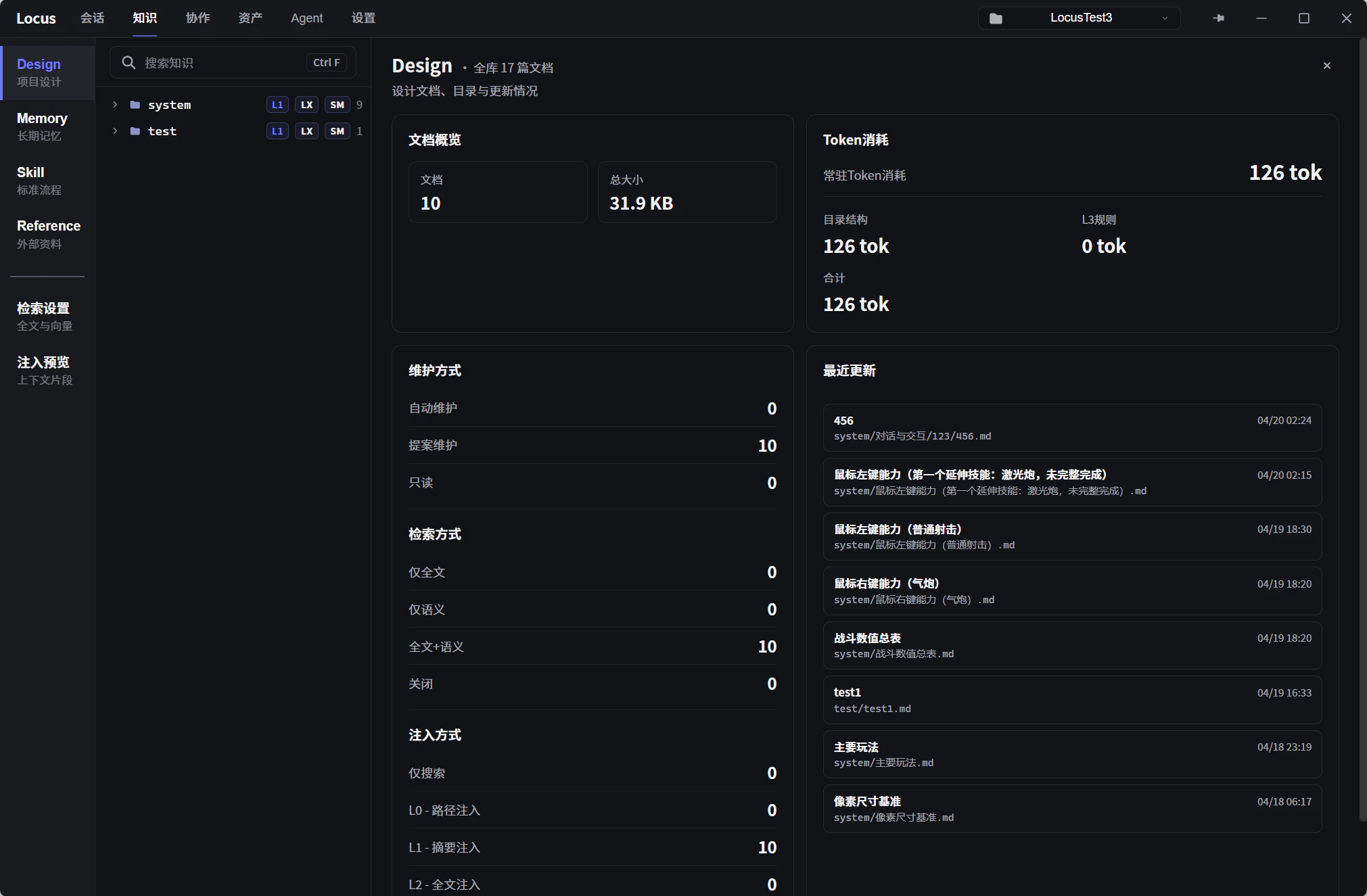
The knowledge base is where the Agent picks up project context. Knowledge is split into four categories:- Design: project requirements and ground truth. The AI proposes updates during a conversation (subject to your approval); you can also edit it manually any time.
- Memory: dynamic context maintained by the AI. Three modules ship by default—user preferences, mistake notebook, and project understanding. You can add your own and define how the AI updates them.
- Skill: codifies repeatable workflows. Describe a process in natural language, and the Agent will follow it next time the same situation comes up.
- Reference: read-only external docs. Today: local files like the Unity API Reference, plus connectors for platforms like Feishu Docs.
Retrieval Strategy
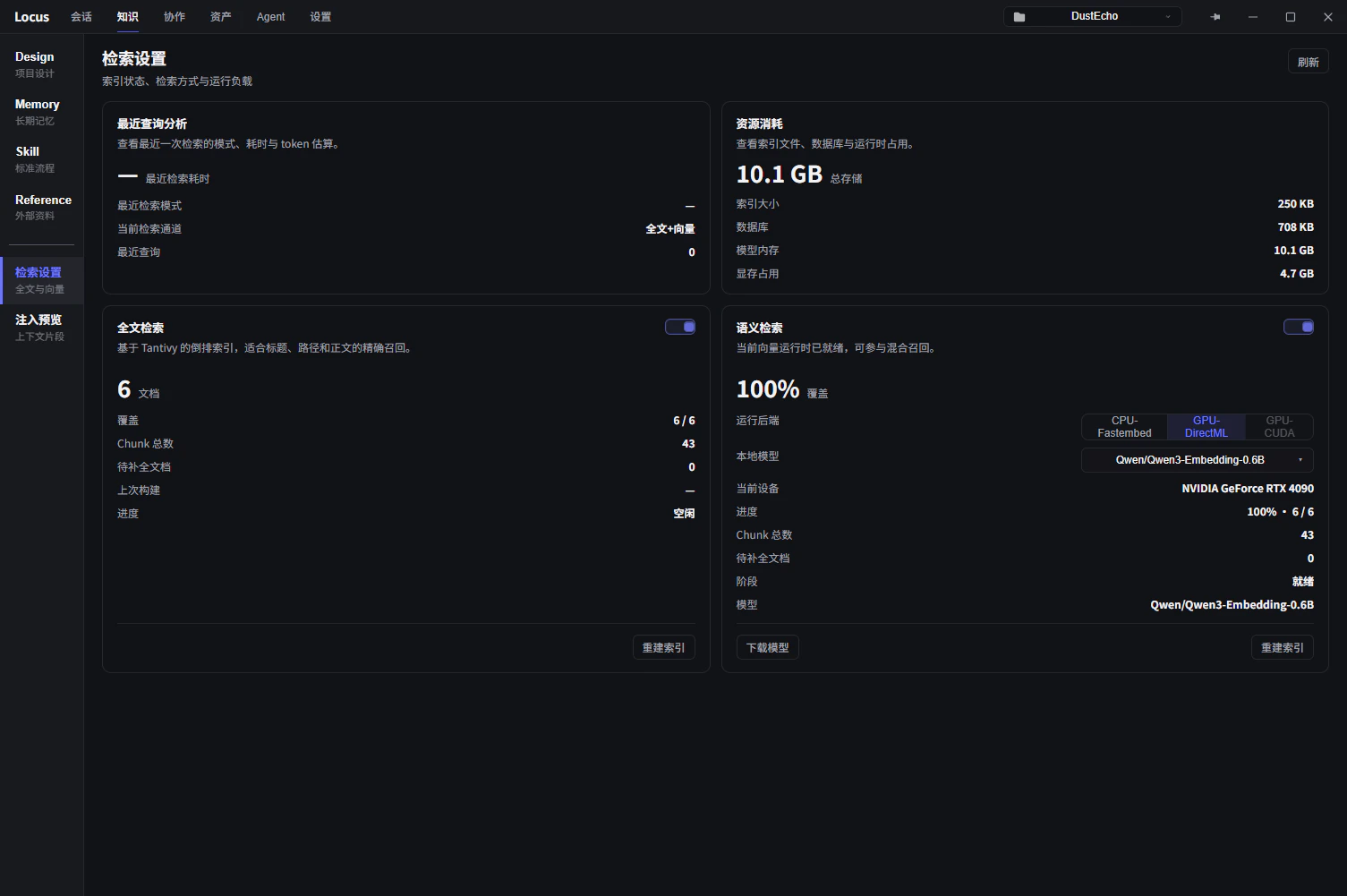
Two retrieval modes are available:- Lexical indexing (off by default): keyword-based exact text matching.
- Semantic indexing (enable in retrieval settings): vector-based fuzzy matching against the AI’s queries—useful when wording doesn’t line up exactly.
Settings
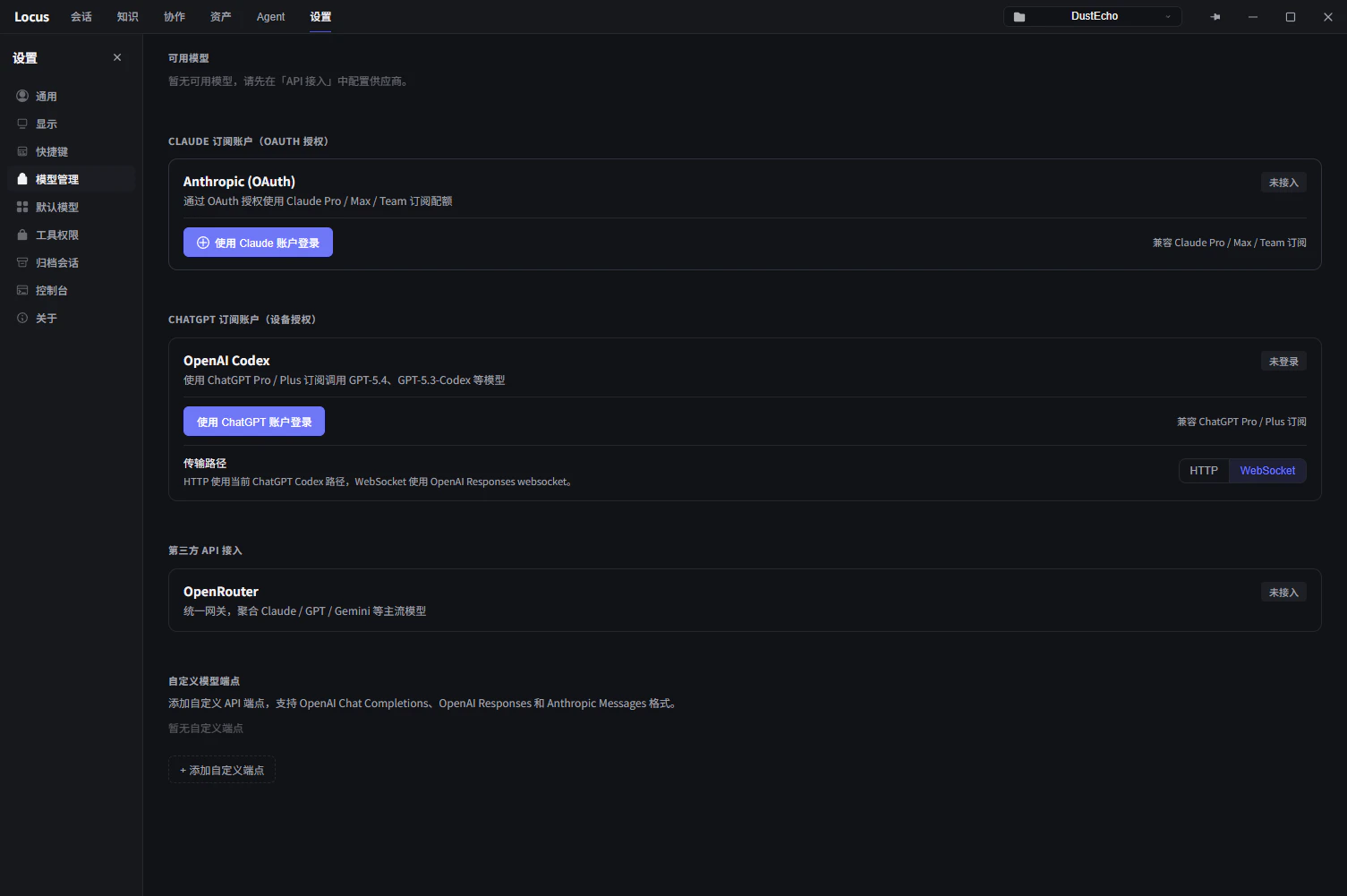
The Settings page holds global configuration.Model Configuration
Customize model parameters, configure third-party API endpoints, and manage subscription account sign-in and authorization.